
The short answer
Turn them on in Parent Center under Progress Report. Spelling Stream Pro can send a weekly summary on the day you pick, an email on days your child practices, or both, to the email you sign in to Cloud Sync with. On every plan, Free included, each child's latest score and words to practice are in the app under Parent Center, then Profiles.
Progress Report emails tell you how your child’s spelling practice went, without opening the app. There are two, and you can have either or both: a weekly summary on the day of the week you pick, and an email on days your child practices. They’re part of Spelling Stream Pro, they need Cloud Sync, and they stay off until you turn them on.
Can I see my child’s progress without Pro?
Yes. Every plan, Free included, shows each child’s progress in the app. Open Parent Center, tap Profiles, then tap your child to see their latest Final Test score and the words to practice. Your child has a Word Progress screen of their own, with their words to practice. It opens when they tap the list name on the home screen.
All of that works offline and needs no account. Progress Report emails send a summary of it to your inbox.
How do I turn them on?
- Open Parent Center and unlock it.
- Tap Progress Report.
- Switch on Weekly summary, After a session, or both. For the weekly summary, tap the day you want it.
Each one has a See an example link that opens a sample email. You can also start from the Pro welcome wizard, whose email page turns on the weekly summary and asks which day. After a session is switched on only from Progress Report. Until either email is on, a child’s profile page asks Want these results emailed to you? and leads to this screen.
Both emails need Cloud Sync, signed in with Apple or Google, because they’re put together from your synced progress. Without it, the switches are dimmed and a yellow Needs Cloud Sync banner takes you to set it up. Your child can’t change any of it, since the page is behind the parent lock.
What’s in the weekly summary?
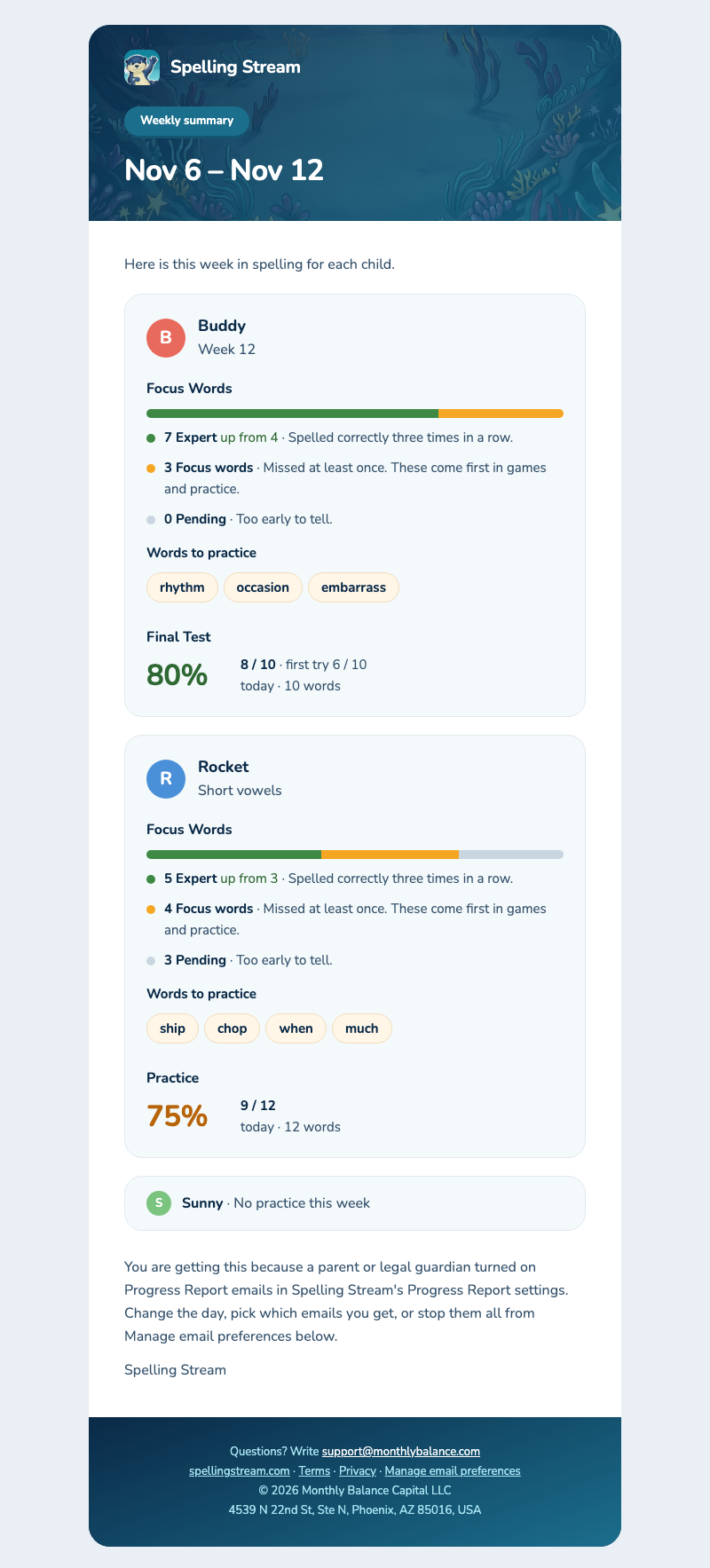
One email for the week, on the day you picked, and only in weeks your child practiced. Each child gets a card with their profile nickname and color, the list they’re on, and:
- Focus Words: how many words are Expert, Focus and Pending, if you have Focus Words on. The Expert line uses the times-in-a-row number you set in Parent Center › Focus Words.
- Words to practice: the words your child missed or is still working on.
- Score: the latest Final Test or practice score. When it’s a Final Test that beats your child’s first Final Test on that list, the first try’s score sits beside it.
A child who didn’t practice that week gets one line saying so. With Focus Words on, games count as practice.
What’s in the After a session email?
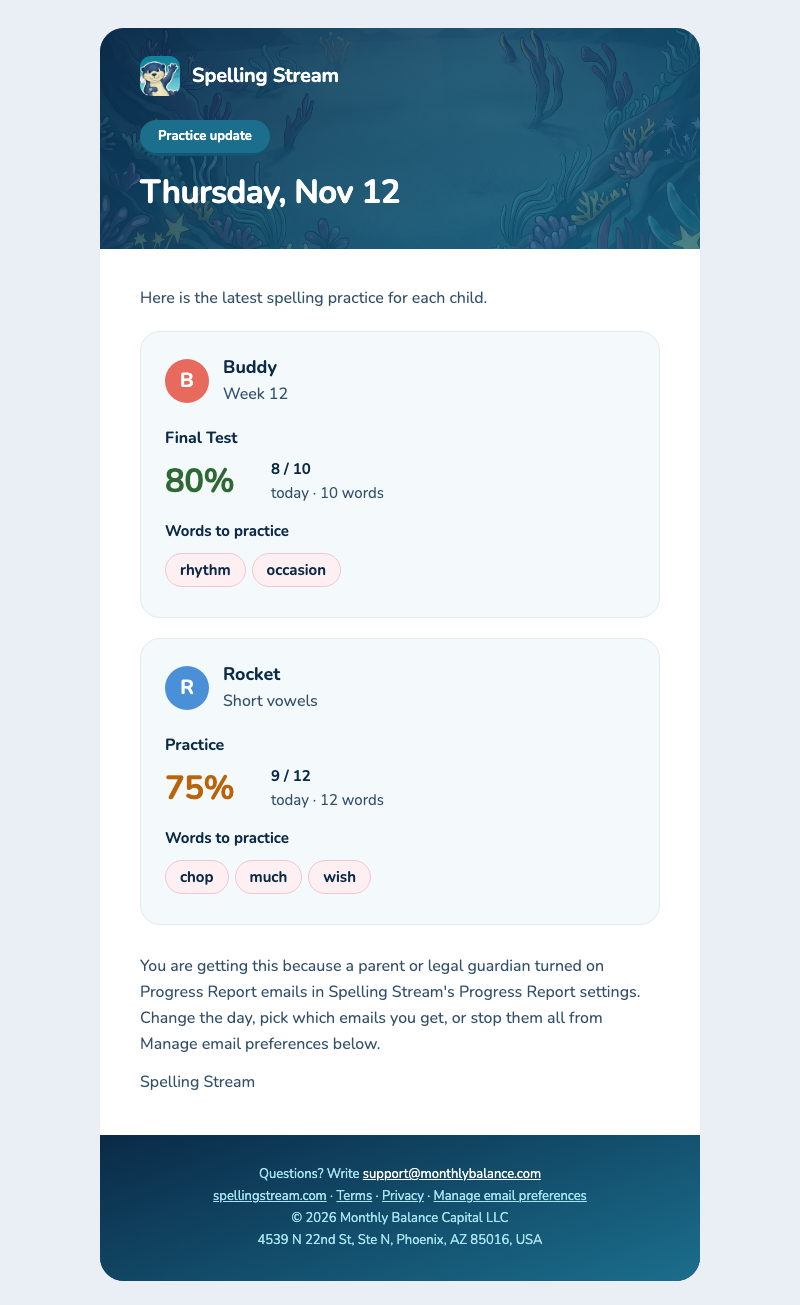
A shorter email on days your child practices, at most one a day. On your weekly summary day you get the weekly summary instead. It arrives headed Practice update. Each child gets a card for each list they practiced that day, with the list, that day’s latest Final Test or practice score, and the words to practice. A child who didn’t practice that day gets one line saying so.
With Focus Words on, games count as practice too, and each card starts with the same Focus Words counts as the weekly summary. A day of games alone still gets a card, with the Focus Words counts and no score.
Which email address do they go to?
The one you sign in to Cloud Sync with. An Apple Hide My Email address works too, and Apple forwards the emails to your inbox.
To use a different address, open Progress Report and tap Use a different email. We send a confirmation email to that address. Tap the button in it, then tap Confirm on the page that opens. Until you do, Progress Report shows Check your inbox and no emails go out, to either address. Use my sign-in email switches back.
How do I change the day or stop the emails?
In the app, open Parent Center, then Progress Report. Tap a different day under the weekly summary, or switch either email off.
Every email also has a Manage email preferences link at the bottom. The page it opens lets you change the day, turn either email off, or tap Unsubscribe from all. To turn emails back on after that, use the switches in the app, where Progress Report shows the date they were turned off.
Why am I not getting emails?
Check these in order.
- Pro and Cloud Sync. You need both. If Progress Report shows the yellow Needs Cloud Sync banner, sign in to Cloud Sync first.
- Practice. The weekly summary comes only in weeks your child practiced, and After a session only on days they practiced, on a device connected to your Cloud Sync account.
- Spam or Promotions. Look there for mail from Spelling Stream, and mark it as not spam so the next one reaches your inbox.
- A different address. It has to be confirmed first. If the confirmation email is gone, tap Resend confirmation email in Progress Report.
What do the emails send, and who delivers them?
For each child, the emails carry the profile nickname and color, the list title, and the scores and words described above. Voice recordings, photos and real names are never in them. Give each profile a nickname, as the app asks when you create one.
Brevo, an email company, delivers them, and only once a parent or legal guardian turns them on. Section 9 of the privacy policy names Brevo and lists what it receives.